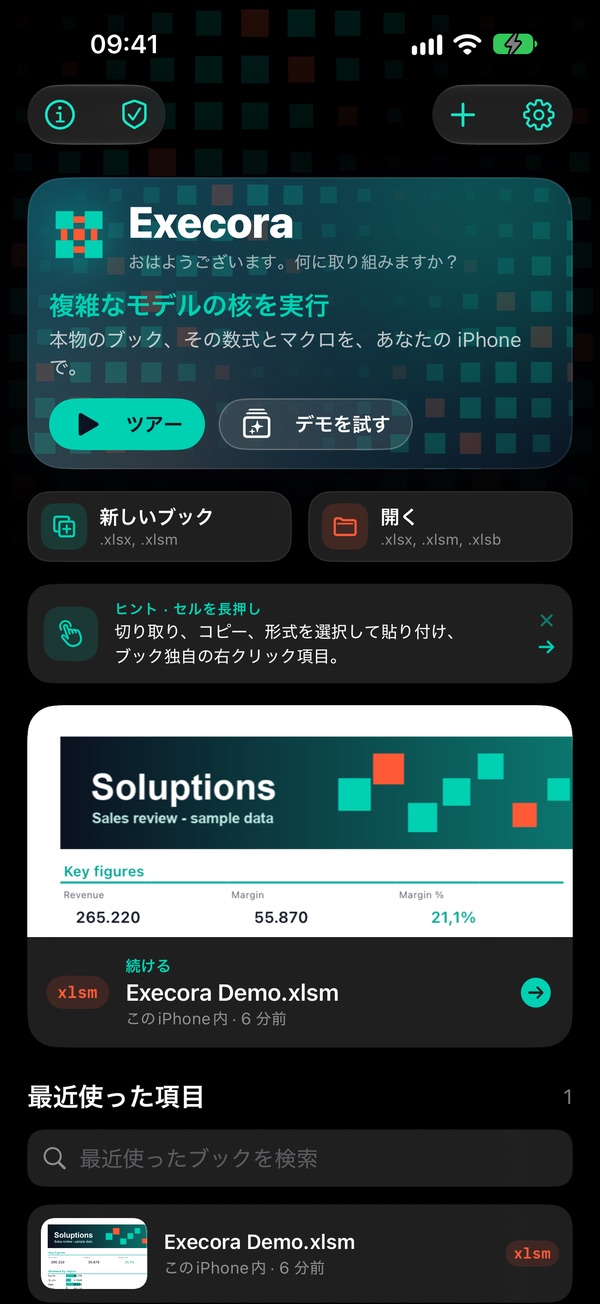
ExecoraAn app bySoluptions

For iPhone, iPhone Duo and iPad

Opens any advanced model.And runs it.

Executes the core of your complex models: formulas, macros, forms, formats and protection, exactly as they were built. A robust, powerful app for iPhone, iPhone Duo and iPad, with nothing leaving your device.

OpensXLSXXLSMXLSBAlso .csv · .tsv · .txt as data
Advanced formulasPivot tablesAI that explains formulasVBA macrosShapes & imagesPDF creationTrace formulasError Checking
Rows & columnsNamed rangesSheets & workbooksCell selection by ruleView managementConditional formattingProtectionAI that writes code

AI at the core

Ask your model. It answers, writes and explains.

Execora’s AI works inside the workbook. It reads the cell or the macro you are on, writes formulas and VBA code, explains what a formula or a macro does, and finds the macro you need. Every answer is checked with Execora’s real engine before you see it, and all of it runs on your device.

  • On the device · Apple Intelligence
  • Answers in your language
  • Nothing leaves the device
Execora AI
FormulaMacroExplain
Total revenue of the Sales table
Ask
=SUM(Sales[Revenue])
Calculated on the sheet: 265,220

Your iPhone’s own intelligence, all on the device

  • Apple IntelligenceExecora uses the model Apple runs on the iPhone, the iPhone Duo and the iPad itself.
  • No internet, no accountQuestions and workbooks never leave the device. It works in a plane, in a basement, anywhere.
  • No cost per questionNo subscription to an AI service, no tokens to buy.
  • Speak your questionDictate it with the keyboard’s microphone, in your language, and Ask AI does the rest.
01

Writes formulas

From a sentence to a formula, calculated on your sheet before it is offered. If it fails, it tries again with the reason, up to three times.

02

Writes macros

VBA code checked by the parser and the security review, tried on a throwaway copy, and never run without asking you.

03

Explains formulas

Name a cell, “Budget!Z9” or “column Z”, and it explains that formula in plain words.

04

Explains macros

The procedure at the editor’s cursor or the one you name, explained from its real code.

05

Finds your macros

“Is there a macro that…?” It answers from the workbook’s own project, never with names that don’t exist.

06

Fixes what failed

When a run fails, Ask AI comes back with the error and a Fix button.
Designed for your thumbs

The commands come to your hand. Not the other way around.

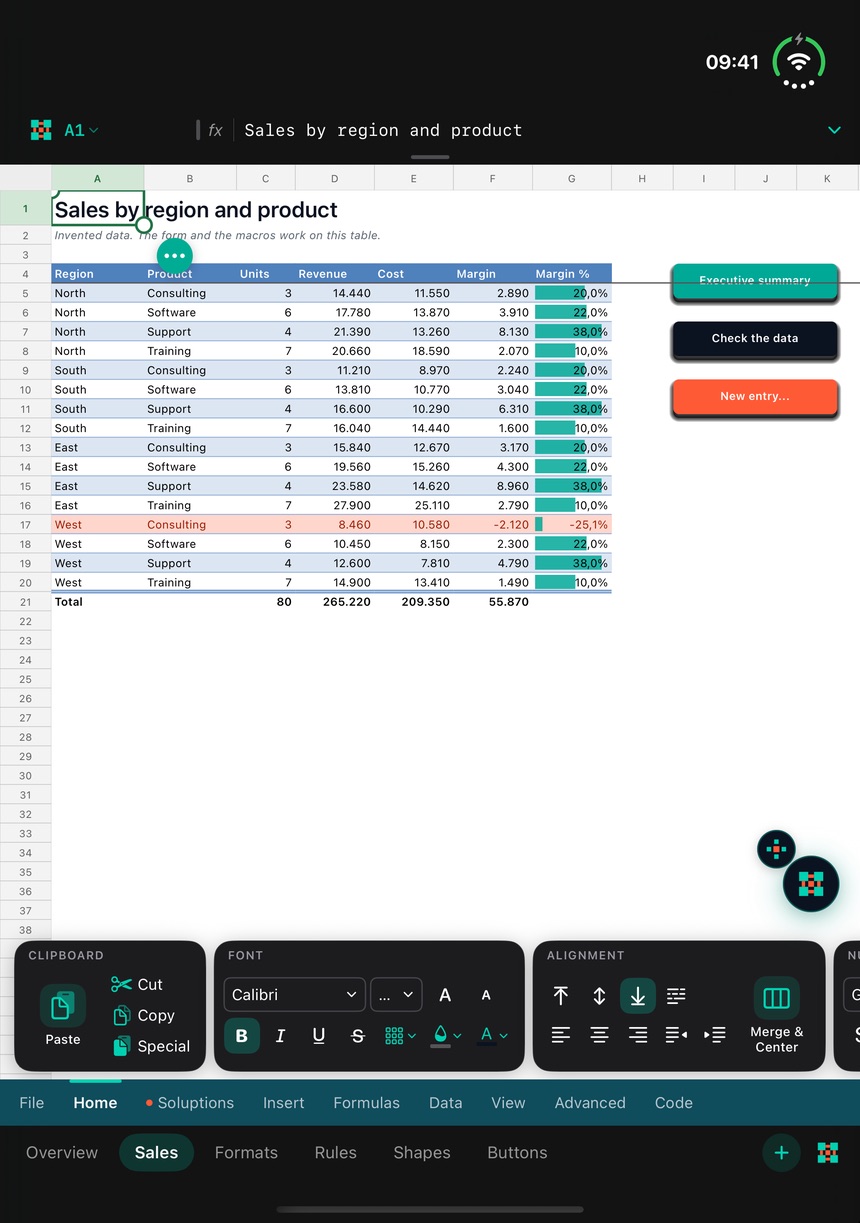
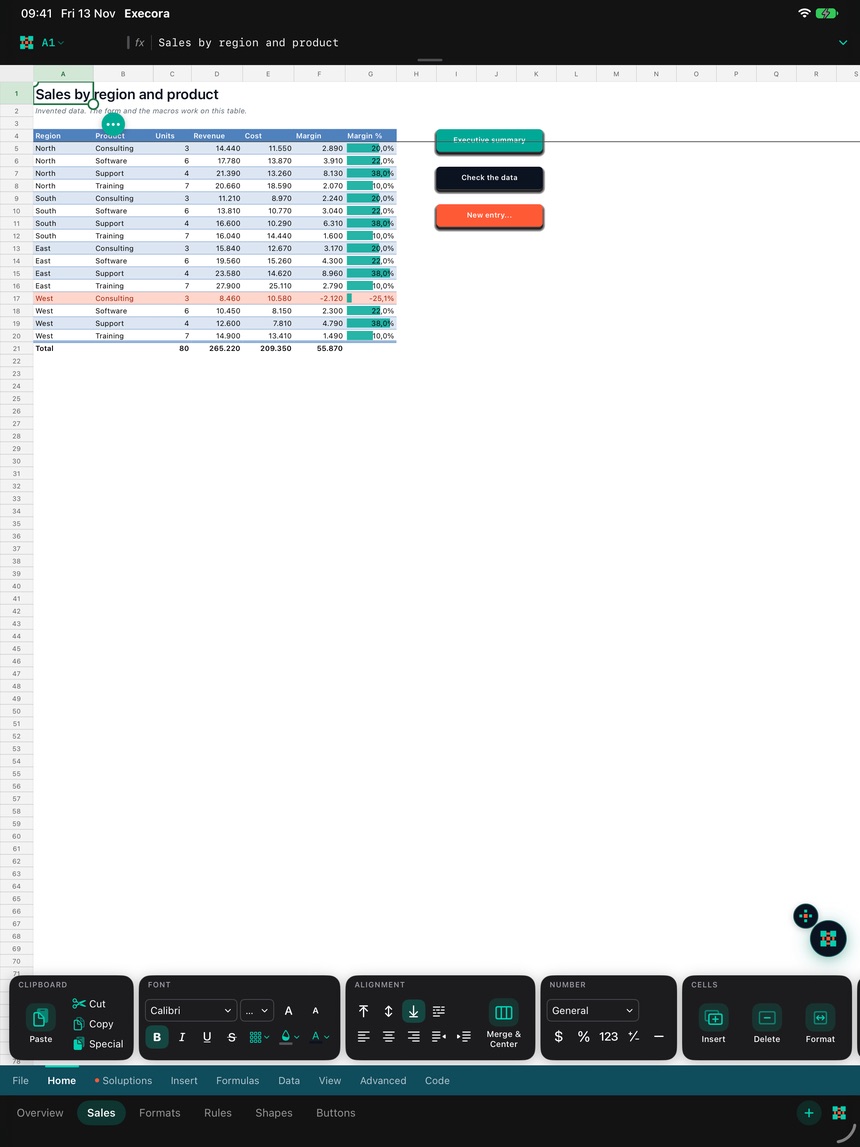
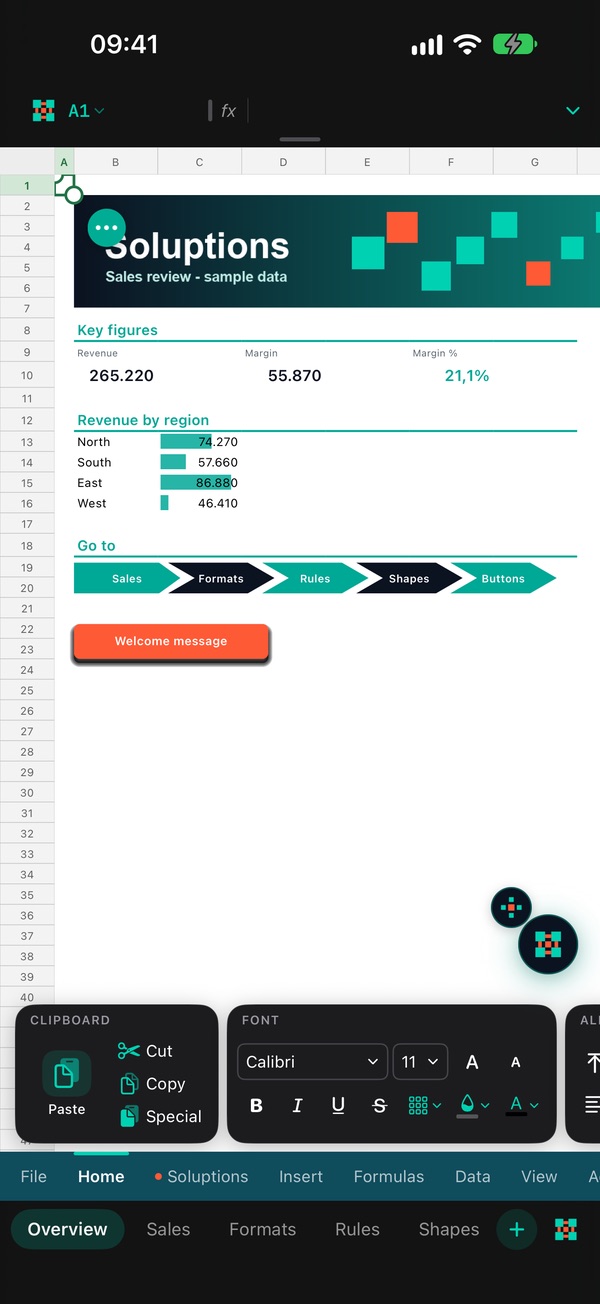
On a phone, the top of the screen is the hardest place to reach. So Execora puts its commands at the bottom, right above your thumbs, and keeps the sheet free above them.

  1. 01

    Commands above the sheet tabs

    One row of command tabs at the foot of the screen; their groups float just above it, within reach of the thumb.

  2. 02

    The workbook’s own tabs, there too

    Custom tabs from the file sit beside the built-in ones, in their order, marked so you know whose they are.

  3. 03

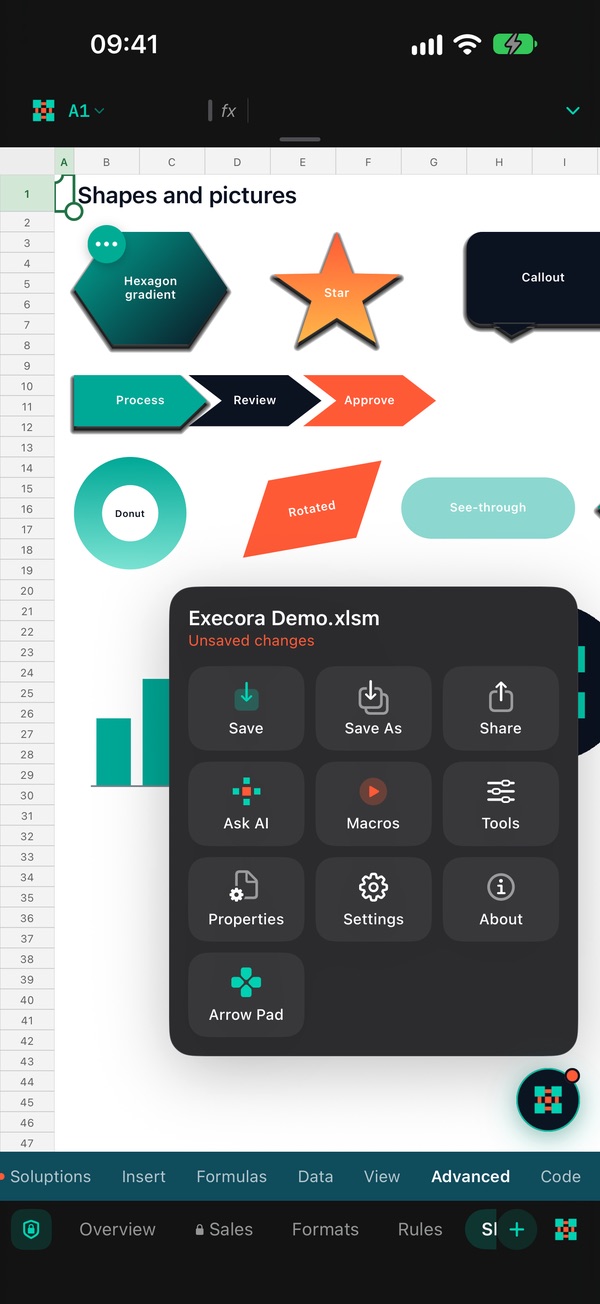
    One button, two hands of work

    Tap the floating button for the tools; hold it for the cursor and edit pad. Drag it to the left or right edge.

  4. 04

    Out of the way in one tap

    The logo beside the sheet tabs shows and hides the commands. While you type they step aside.

  • iPhone
  • iPhone Duo
  • iPad

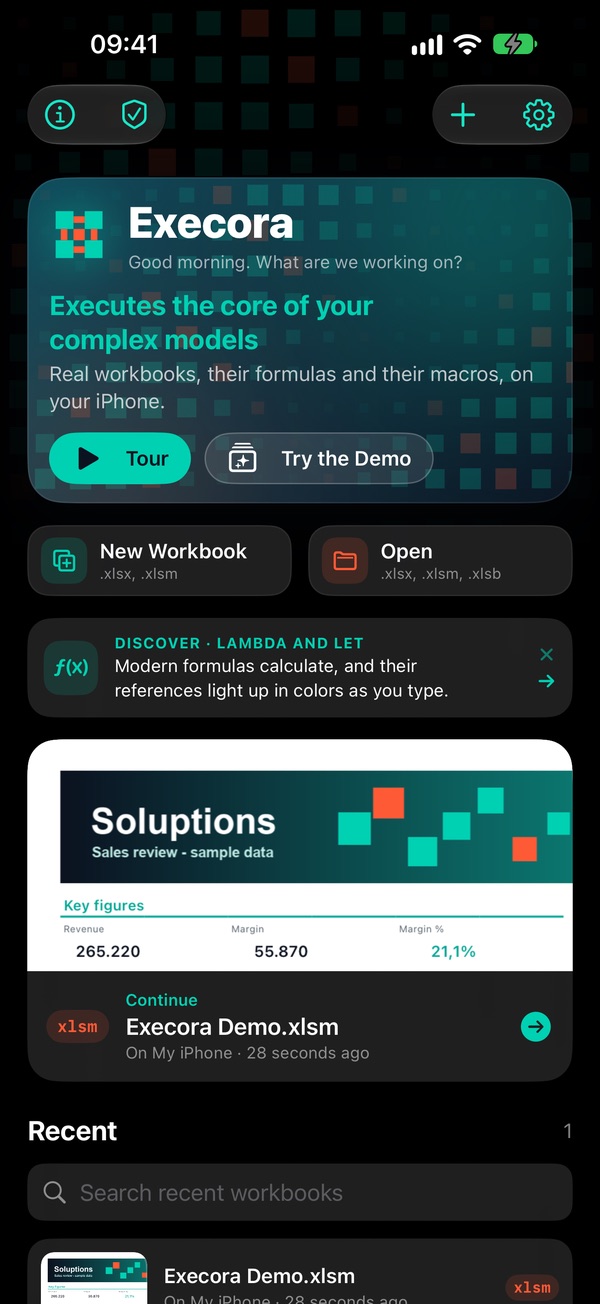
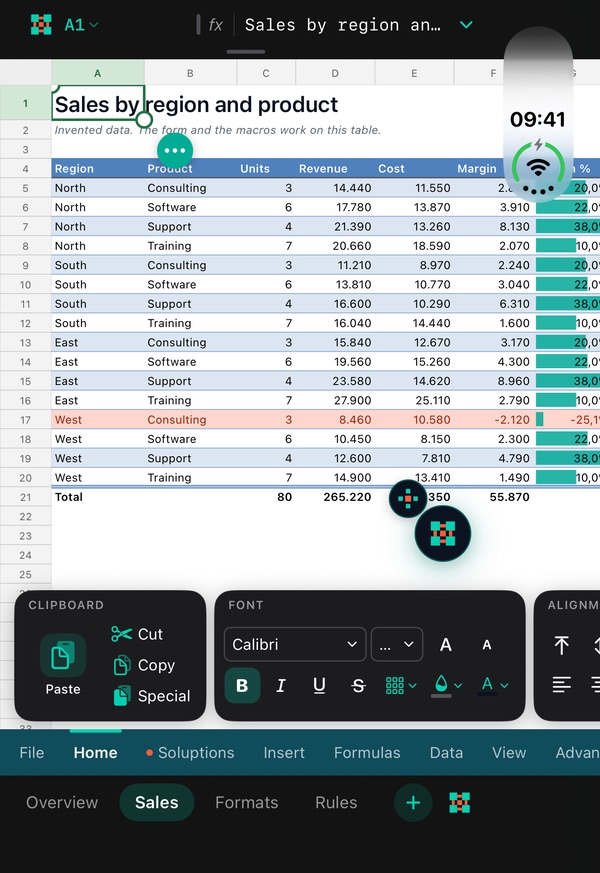
The same thumb-first layout on every size, from the iPhone to the iPhone Duo and the iPad.
  • iPhone
    iPhone
  • iPhone Duo, folded
    iPhone Duo, folded
  • iPhone Duo, open
    iPhone Duo, open
  • iPad
    iPad

The same workbook on each device, with its commands at the foot of the screen.

See it working

The whole model, not a preview

  1. 01

    Opens real workbooks

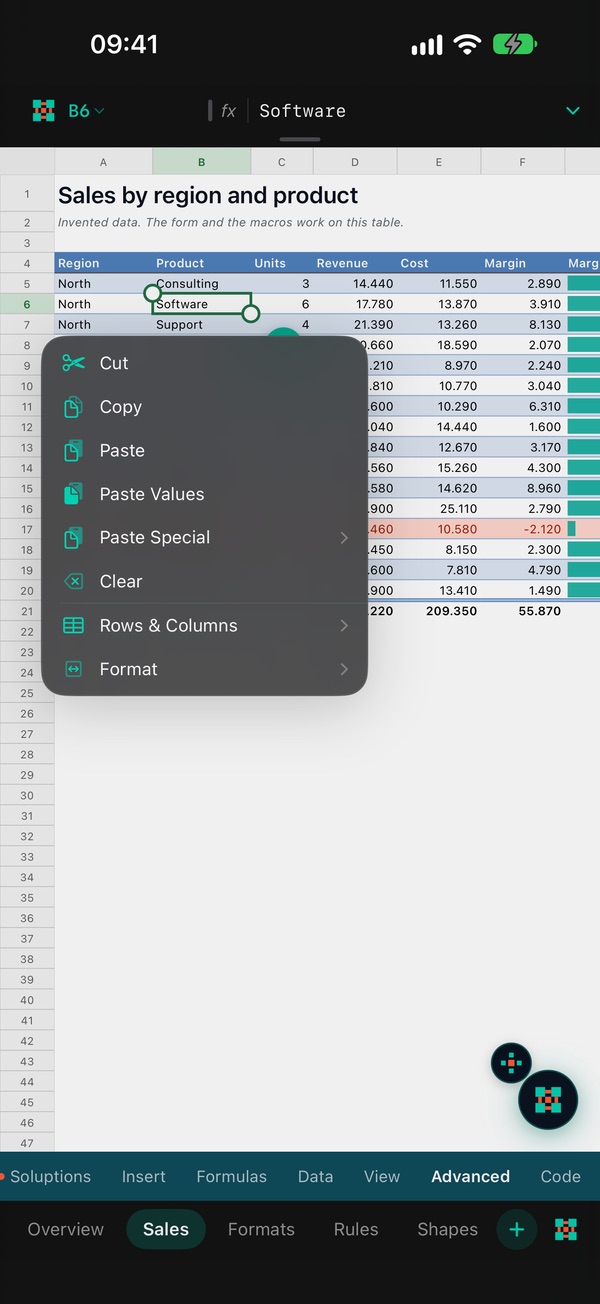
    Formulas, formats, conditional formats, tables, shapes, pictures and form controls: the workbook as its author built it, with every value calculated by Execora’s own engine.

    Opens real workbooks
  2. 02

    Runs the macros

    Its own VBA interpreter with the workbook object model, events, messages and input boxes. The buttons run what they always ran.
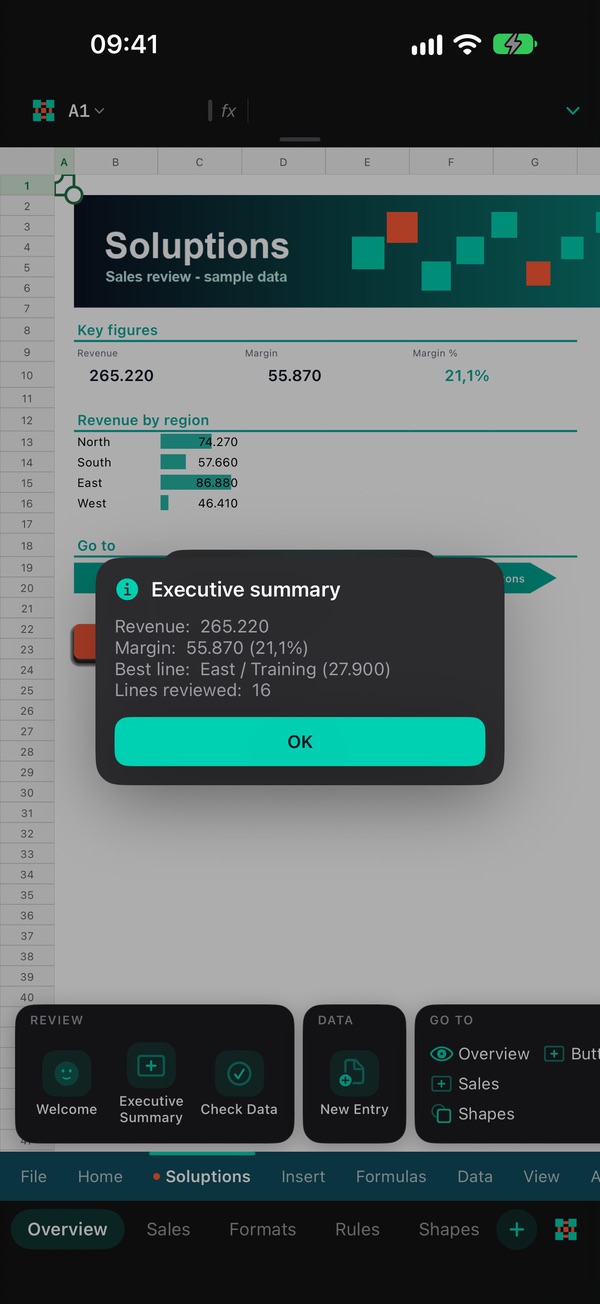
    Runs the macros
  3. 03

    UserForms and the workbook’s own tabs

    Forms open over the sheet, custom command tabs and right-click menus appear as the author designed them. A long press is the right-click.
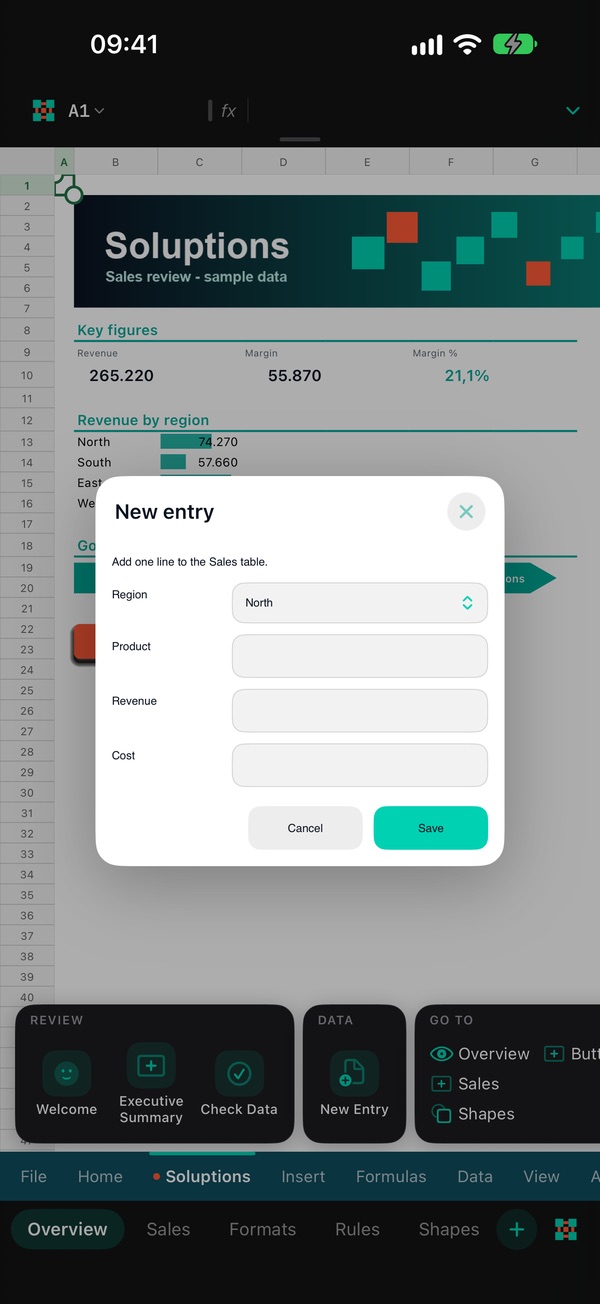
    UserForms and the workbook’s own tabs
  4. 04

    Safe before anything runs

    Enable, Don’t Enable or Review. The review reads the code without running it and lists what a macro could do: files, programs, network, what runs by itself.
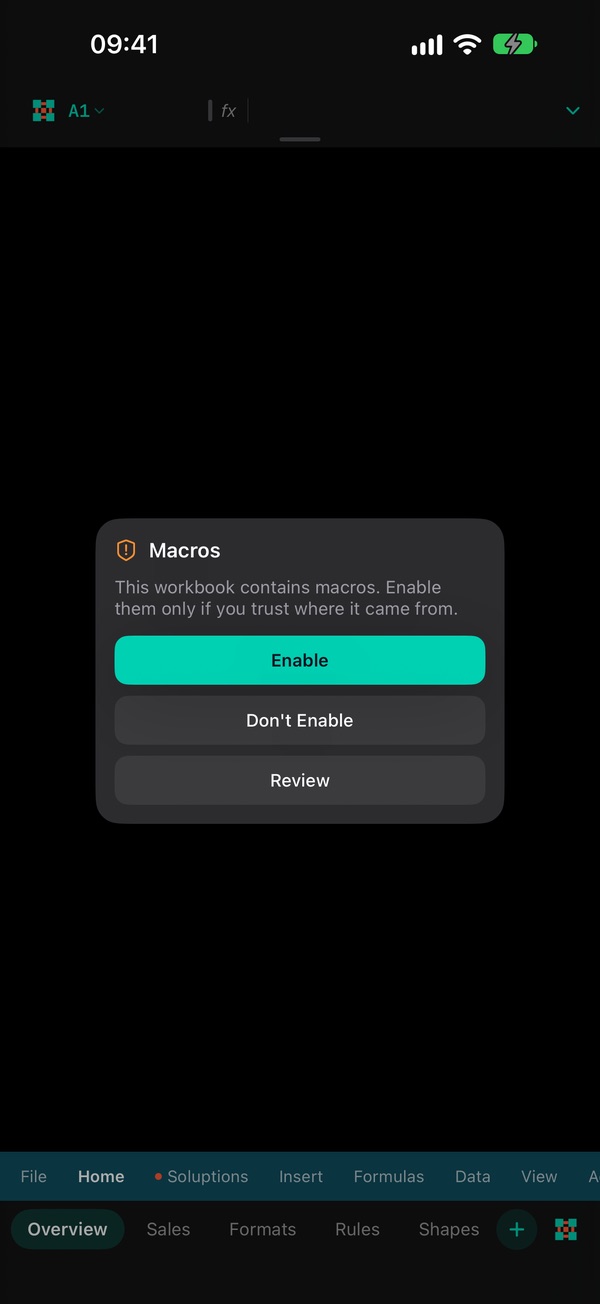
    Safe before anything runs
  5. 05

    Understand any model

    Trace what a cell uses and what uses it, across sheets. Evaluate a formula step by step. Error Checking shows where errors start and what inherits them, and circular references are marked on the sheet.

    Understand any model
  6. 06

    Code, on the go

    A real VBA editor: colours, autocomplete from the object model, live errors from Execora’s parser, find and replace, folding. Edit, run, save.
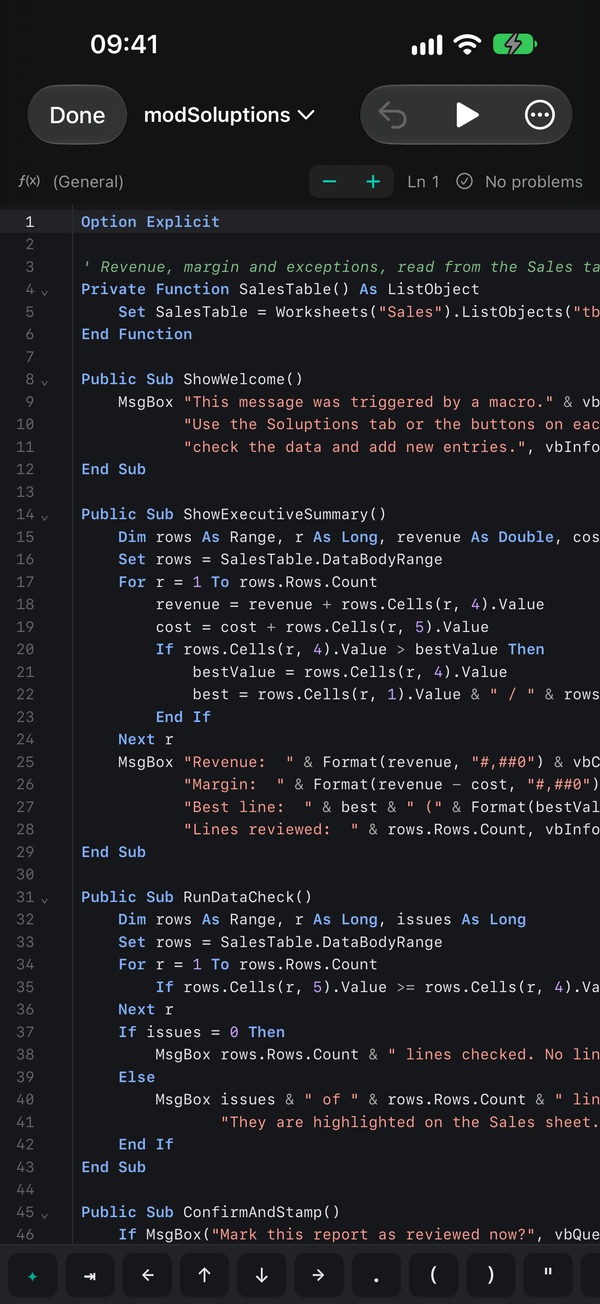
    Code, on the go
  7. 07

    Ask AI, on the device

    Suggests formulas and macros and explains them, with Apple Intelligence on the device. Every answer is checked with the real engine before it is offered.
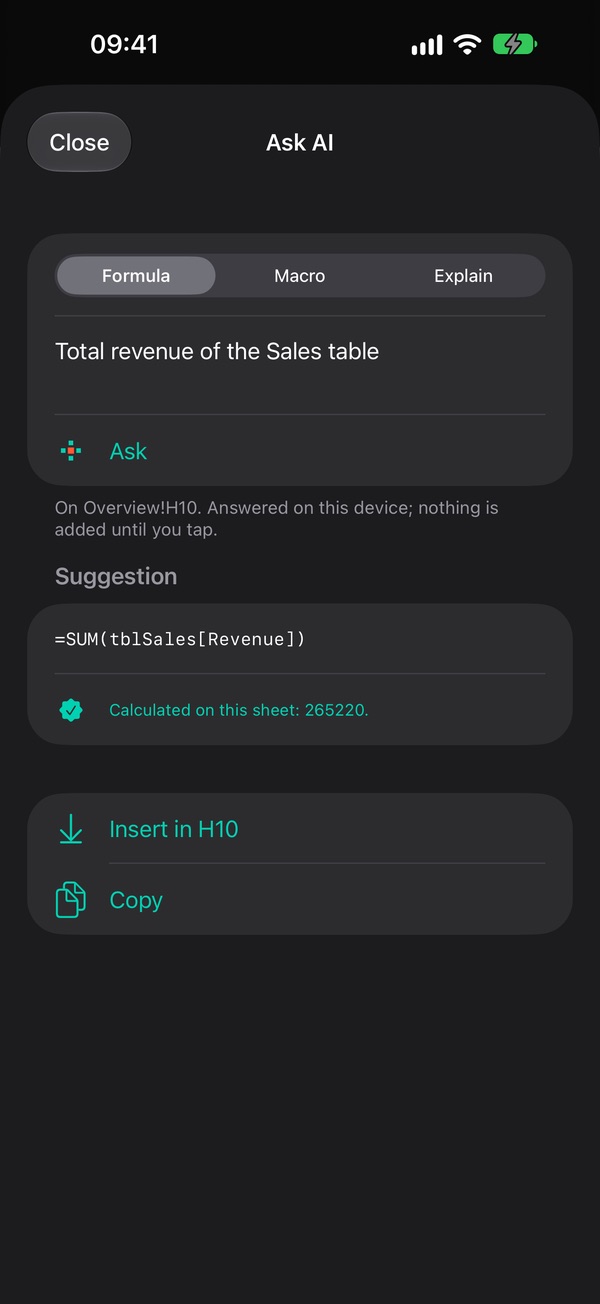
    Ask AI, on the device
  8. 08

    Protection, as it should be

    Sheet and workbook protection with passwords, verified with the same hashes the file uses. What is locked stays locked.
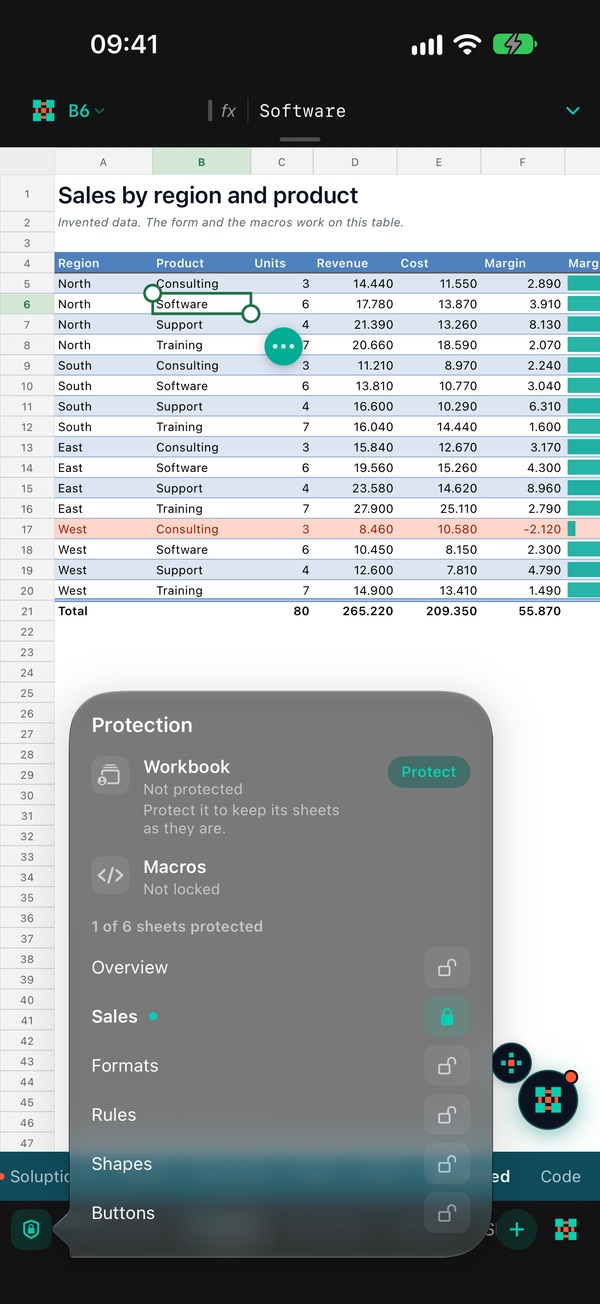
    Protection, as it should be

A robust, powerful app

Everything an advanced model needs, at full power

Not a viewer. Execora’s own formula engine, VBA interpreter and file writer, built to open the most demanding workbooks and run them as their authors intended.

01 · Any model

Opens any advanced model

  • .xlsx, .xlsm and .xlsb, with their formulas, macros, forms and objects
  • Saves .xlsx and .xlsm; an .xlsb is saved as .xlsm
  • What it doesn’t model is copied unchanged, byte for byte
  • Large models: dozens of sheets, tens of thousands of formulas
02 · VBA

Macros that really run

  • Its own VBA interpreter with the workbook object model and events
  • UserForms, MsgBox, InputBox, the workbook’s own command tabs and menus
  • The buttons and shapes of the workbook run what they always ran
  • Security review of what a macro could do, before anything runs
03 · Code editor

An advanced macro editor

  • Colours, folding, indentation and a key bar made for touch
  • Autocomplete from the object model by variable type, your procedures, sheet and range names
  • Live errors from Execora’s own parser, a problems list, go to definition, find and replace
  • Closing lines written for you; Run refuses code with errors; saved inside the workbook
04 · Formula engine

Advanced formulas

  • LET, LAMBDA, XLOOKUP, MAP-style functions and dynamic arrays
  • Structured references: Table[Column], [@Column], #Totals
  • Calculated as the file expects, verified against saved results
  • Every reference in colour, framed on the sheet, while you type
05 · Trace · Error Checking

Trace formulas, trace errors

  • Trace what a cell uses and what uses it, across sheets and names
  • Evaluate Formula step by step, with Step In and where an error starts
  • Error Checking: where errors start and every cell that inherits them
  • Circular references found and marked on the sheet
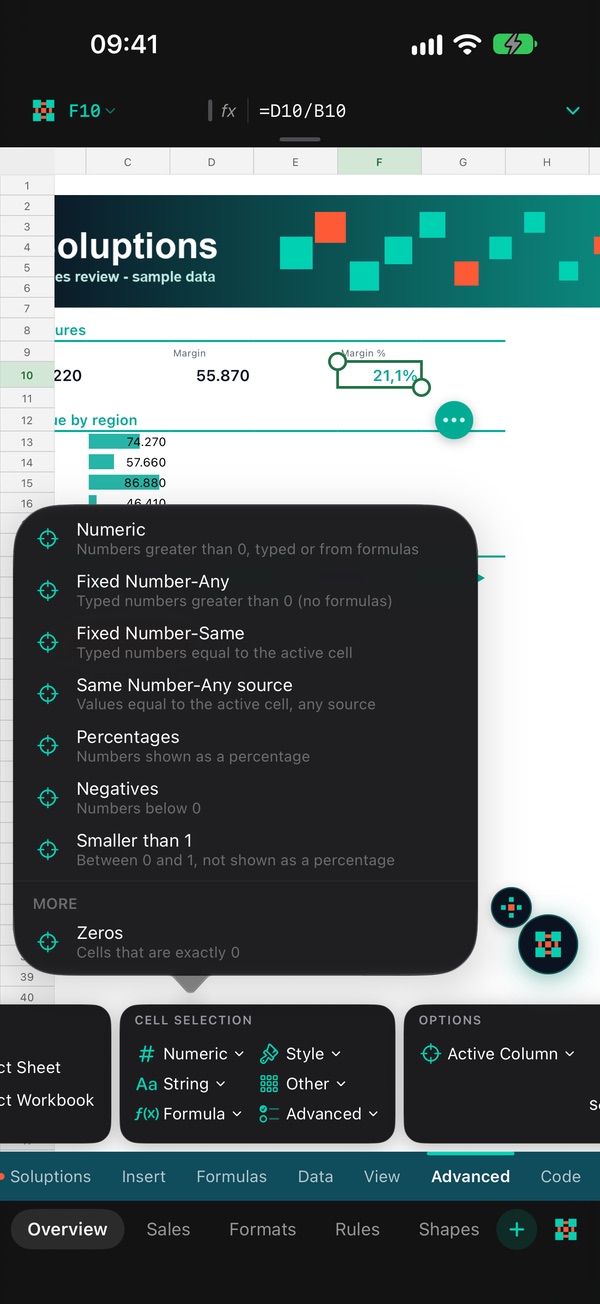
06 · Cell Selection

Select cells by advanced criteria

  • 36 rules: same style, same formula, fixed numbers, strings, formulas, constants…
  • Duplicates, unique values, errors, blanks, merged cells, comments, validation
  • In the active column, the selection or the whole sheet
  • The result becomes a multiple selection, ready to format or clear
07 · Pivot Table

Pivot tables

  • Build a pivot table from any range, on the device
  • Rows, columns and values: Sum, Count, Average, Max, Min and more
  • Report filters, subtotals and grand totals
  • Refresh All when the data changes
08 · Name Manager

Named ranges, managed

  • Name Manager: search, filter by sheet, broken or hidden names
  • Create, edit, rename and delete; scope as the file defines it
  • A rename updates every formula, rule and validation that uses the name
  • Go to any name from the Name Box
09 · Management

Sheets and workbooks

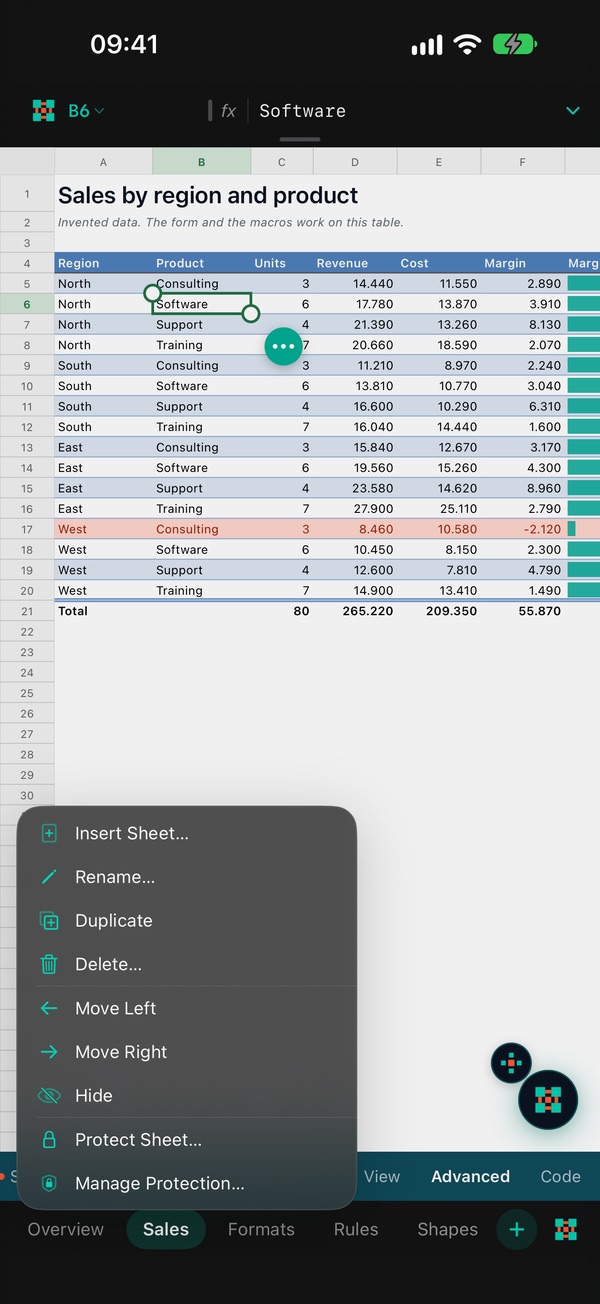
  • Insert, rename, duplicate, move, hide, protect and delete sheets
  • Names checked as you type, with every sheet listed and searchable
  • References follow a renamed sheet across the workbook
  • Workbook properties, protection, Save As .xlsx or .xlsm, Share
10 · Structure

Rows and columns

  • Insert, delete, hide and unhide rows and columns
  • Resize with a finger, the size in characters, points and pixels as you drag
  • AutoFit with a double tap; every selected column takes one size
  • Insert Cut Cells moves blocks with their references, as on a computer
11 · View

View management

  • Freeze panes, the top row or the first column
  • Gridlines, headings, formula bar and zero values, on or off
  • Zoom in and out; the formula bar and the Name Box resize by hand
  • Commands hidden in one tap, for the cleanest screen
12 · Long press

Contextual menus

  • A long press is the right-click: cells, rows, columns, sheet tabs, objects
  • The workbook’s own menu items and right-click events, as its macros define them
  • A selection actions card with everything for the selected cells
  • Paste Special: values, formulas, formats, column widths, transposed
13 · Strategic layout

Commands, placed for the hand

  • Command groups float above the sheet tabs, within reach of the thumb
  • The workbook’s own custom tabs, in their order, beside the built-in ones
  • A floating button: tap for the tools, hold for the cursor and edit pad
  • Hidden in one tap, for the cleanest view of the sheet
14 · Objects

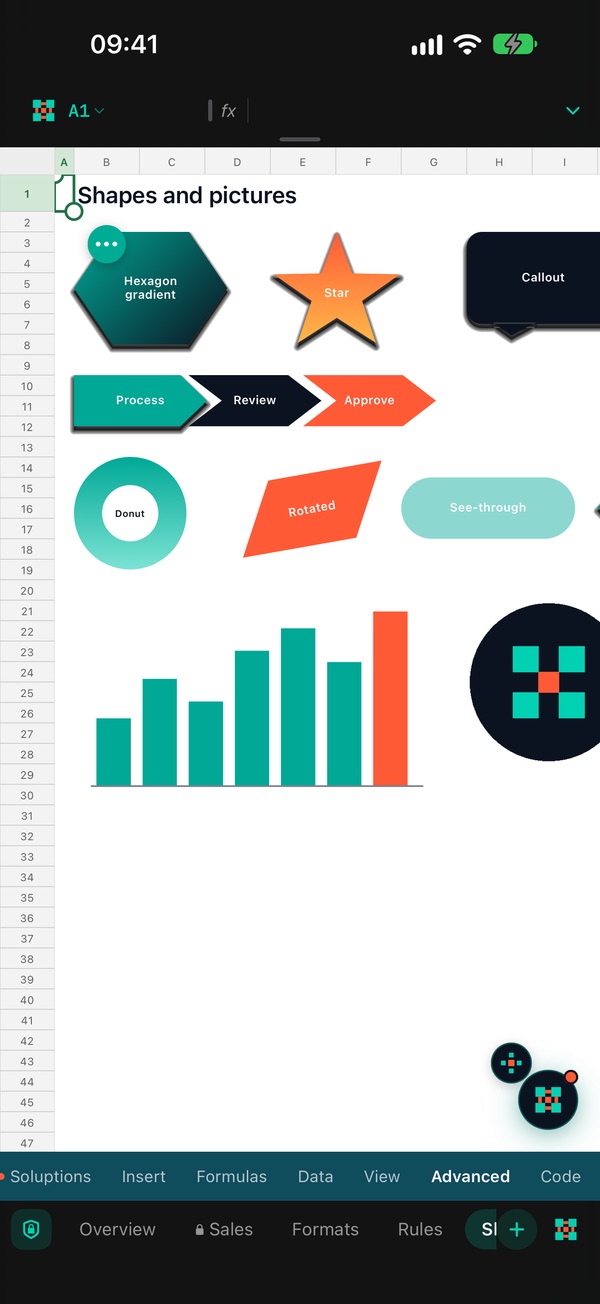
Images and shapes

  • 30 shapes and text boxes, inserted where you work
  • Format panel: fill, transparency, line, text, size, rotation, flip, order
  • Move, resize, duplicate and delete by touch, every step undoable
  • Pictures, gradients, shadows and form controls drawn as the author made them
15 · Formats

Formatting, normal and conditional

  • Number formats, named styles, fonts, fills and borders
  • Theme colours with their shades, recent colours, pick a colour from the sheet
  • Conditional formatting and data validation with drop-down lists
  • Formats saved back faithfully, without disturbing the rest of the file
16 · Passwords

Protection and unprotection

  • Protect and unprotect sheets and the whole workbook, with passwords
  • Verified with the same hashes the file uses; works back in other apps
  • What the author allowed stays allowed: locked cells stay locked
  • A padlock on each protected tab, one card for every lock
17 · PDF

PDF creation

  • Export any sheet to PDF, preview it and share it
  • The file’s page setup: paper, margins, scale, centring, page breaks
  • Headers and footers with page numbers, dates and the file name
  • Macros’ PrintOut and ExportAsFixedFormat create PDFs too

Private by design

Your models are yours. They stay on your device.

Workbooks hold prices, salaries, plans and decisions. Execora was built so none of it ever leaves your hands.

No account

Open the app and work. Nothing to sign up for.

No tracking

No analytics, no advertising, no data collected.

No network

Execora makes no connections. Macros can’t reach the internet or run programs.

AI on the device

Ask AI runs with Apple Intelligence on your iPhone, iPhone Duo or iPad. Nothing is sent anywhere.

Read the Privacy Policy

Who it is for

For the people who build and run the models

Advanced users & developers

Analysts, model builders, finance and operations teams, VBA developers: check, fix and run a model away from the desk.

Organizations

Teams whose operations run on spreadsheet models and macros, with the data kept on their own devices.

In your language

Twelve languages, following your iPhone

The interface, the help and the legal texts in each language. A workbook’s own content, its sheet names, tabs, buttons and cells, is never translated.

  • English
  • Español
  • Português (Brasil)
  • Français
  • Deutsch
  • Italiano
  • Suomi
  • Norsk
  • Русский
  • 日本語
  • 한국어
  • 简体中文

Requirements

Execora
iPhone, iPhone Duo and iPad, with iOS / iPadOS 17 or later
Ask AI
iOS 26 on a device with Apple Intelligence
Files
.xlsx · .xlsm · .xlsb · .csv · .tsv · .txt

Your models,wherever you are.

Execora is coming soon to the App Store for iPhone, iPhone Duo and iPad.

Coming soon to the App Store

Questions or ideas? Write to us. · hello@soluptions.com